
How to use GraphQL to fetch public URL and ALT text for assets in Content Hub
4 min readDuring my recent XM Cloud project work, I came across the requirement to get the public URL and alt text for the assets uploaded in the Content Hub.
Anyone who has experience with Content Hub, must know that the DAM connector for XM Cloud has configurations for mapping the fields between XM Cloud and Content Hub, along with the UI to select the public URL of the assets.
But what how should we get the above mentioned data programmatically? The first thought came to my mind is to use the REST Apis to query the entity data, but that has very complex data structure and require multiple request for the final data.
Then I started looking for the GraphQL usage with Content Hub. I came across the following article provided by Sitecore Content Hub which provide different GraphQL example queries to fetch data.
Please refer the documentation for more details.
This gave me confidence that I can now be able to finish my requirements. But the question was I've query based on the custom field we created. How would I know which operation I've to use? What are different arguments available to use in the GraphQL query and what are the result properties available to include in the output?
For this, Postman application came to my rescue. My primary purpose to write this article is to showcase how we can use the Postman application to generate the GraphQL query using the available schema fetched by Postman from the Sitecore Content Hub.
Before moving ahead, I assume that the reader is aware about how to generate the authentication token in the Content Hub to pass when sending GraphQL request. If you do not know how to generate the API key, please click here to refer the documentation.
Now let's move ahead.
First open the Postman application if you have installed it on your system. You can download the Postman application if it is not installed on your system.
Create a new workspace.
Click the New button.
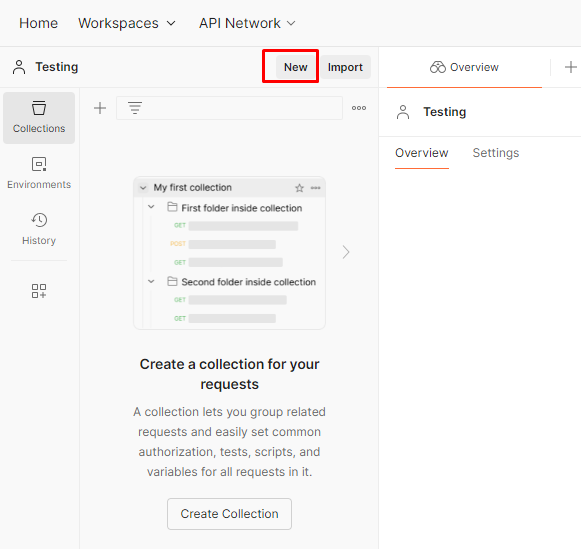
You will see the dialog as shown below which will allow you to create different request item.
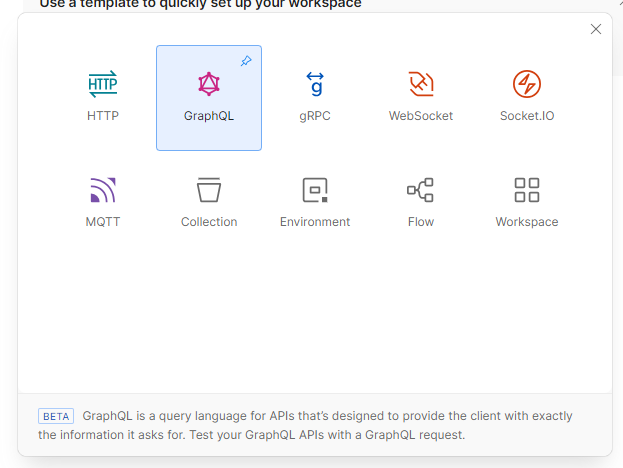
Click the GraphQL button to create a new request item.
In the URL box add the GraphQL endpoint as shown in the following screenshot. And add the X-GQL-Token key and value in the Headers.
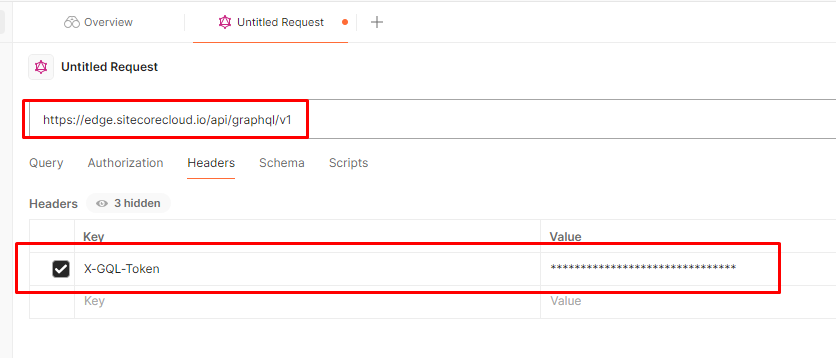
Please make sure to use appropriate API key for requesting data. If you are using the EDGE endpoint to query the data, you have to generate the Delivery API key. If you are using preview endpoint then you must generate the Preview API key.
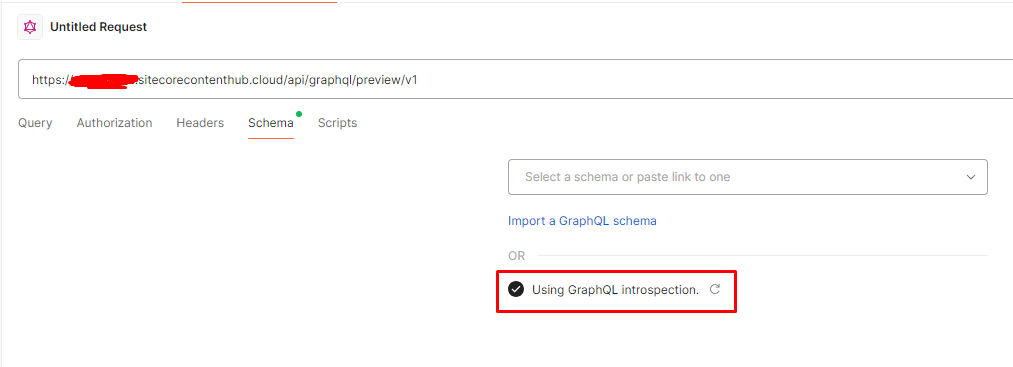
Now switch to the Schema tab and click Use GraphQL Introspection link.
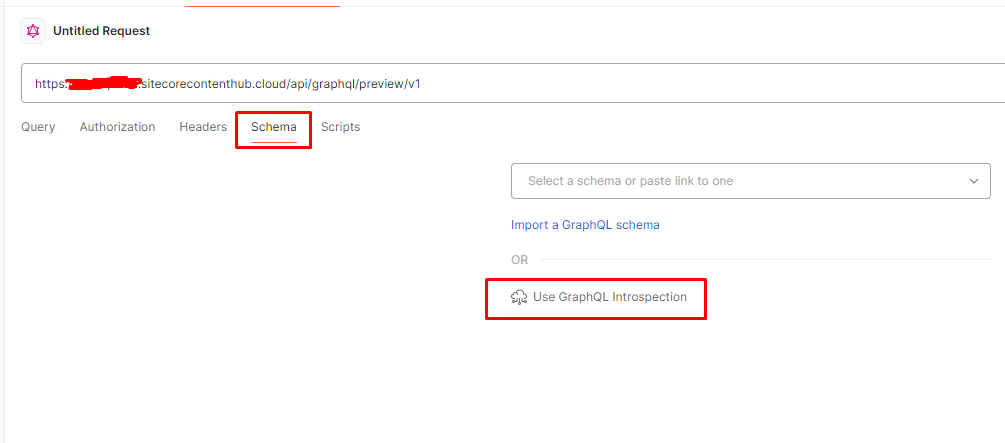
If you have the valid API key then the schema introspection operation will be successful.
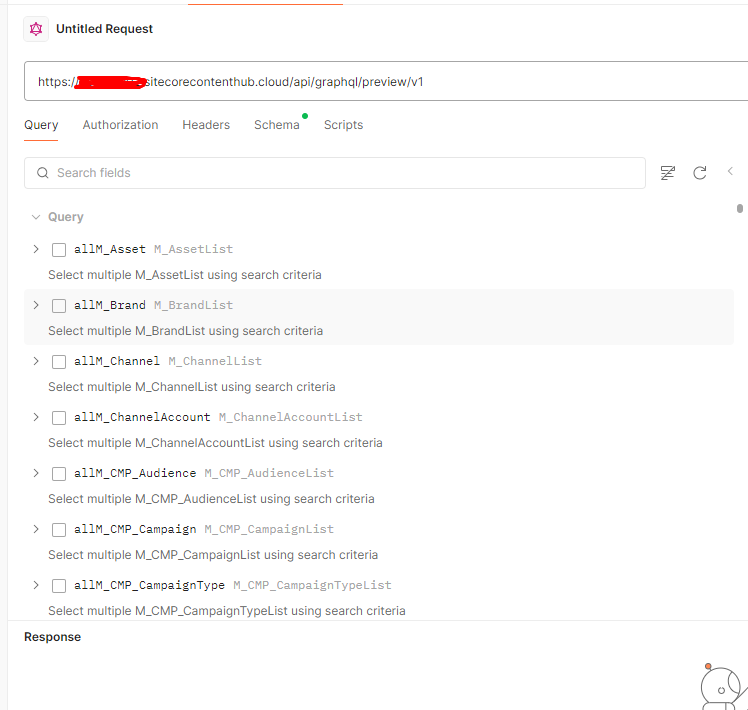
Now switch to Query tab and you will be able to see the available types derived during the schema introspection and generated by Content Hub.
For the purpose of the example in this article, I will showcase how to generate the GraphQL query to fetch the public URL and alt text for the image asset type.
In the Query box, click the checkbox available against the allM_Asset node. It will add the query on the right hand side of the section and expands the node with available options.
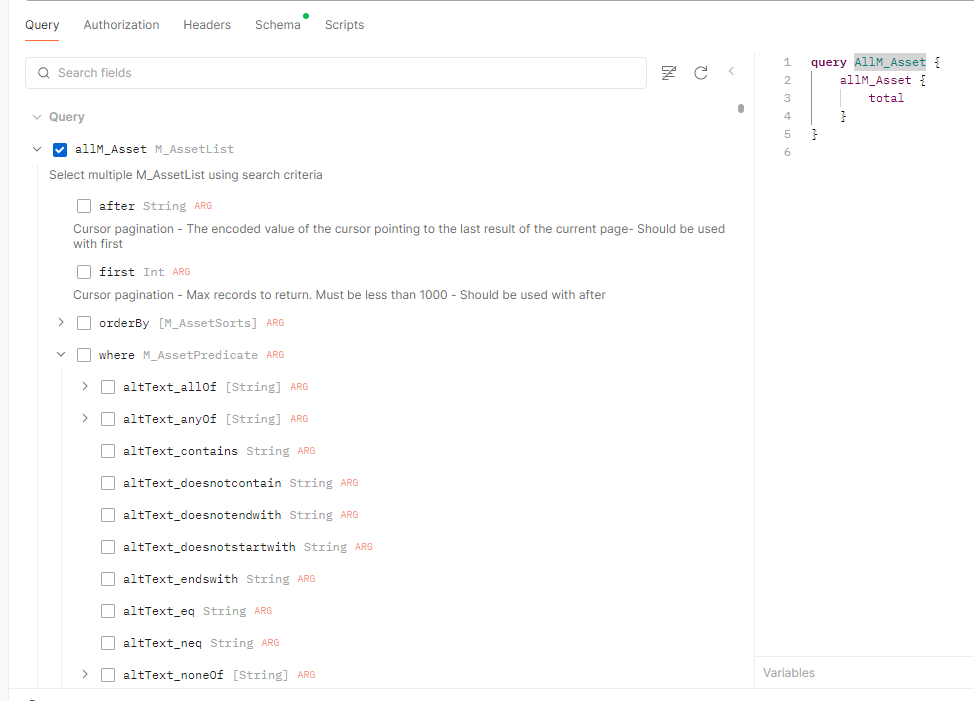
Now in the expanded where node, scroll up to the field fileName_eq and select the check box. The query is updated with the selected field in the where condition. You can also provide the field value show in the box next to the selected field or in the query.
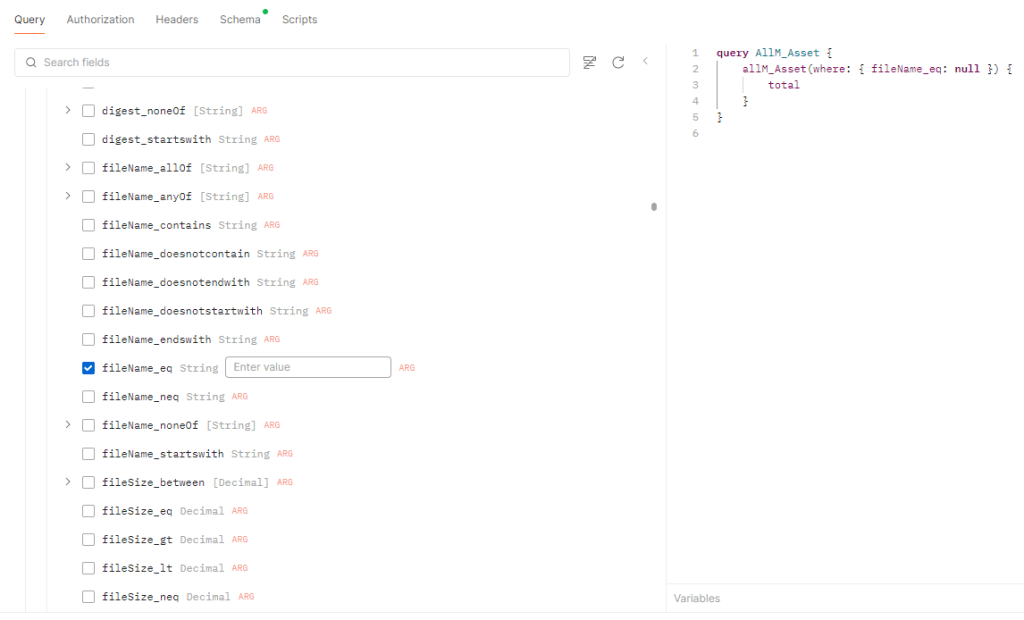
I will use the value programid_131.jpg to fetch the public URL and alt text.
Now collapse the where node and expand the results node and select the altText, and urls fields. The updated query will look like the following.
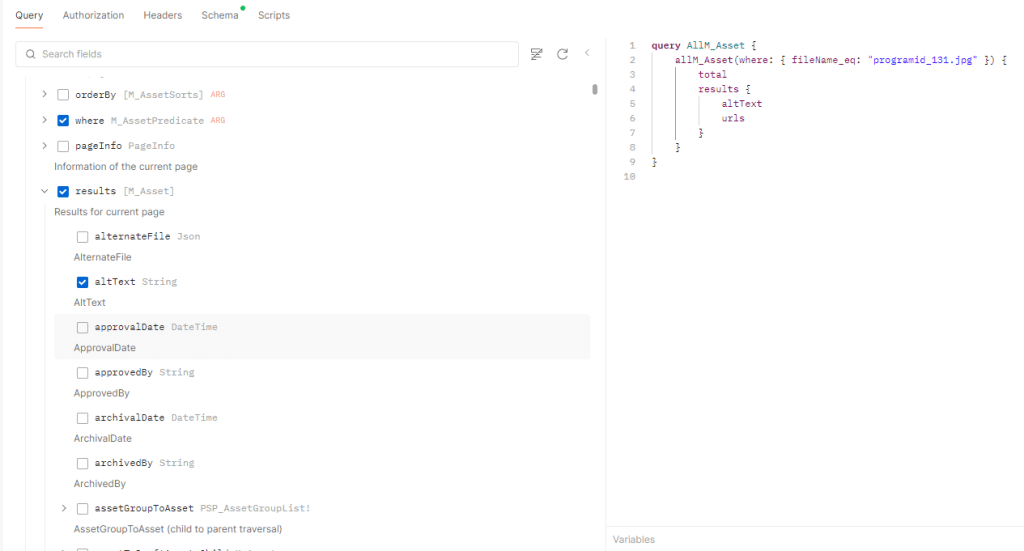
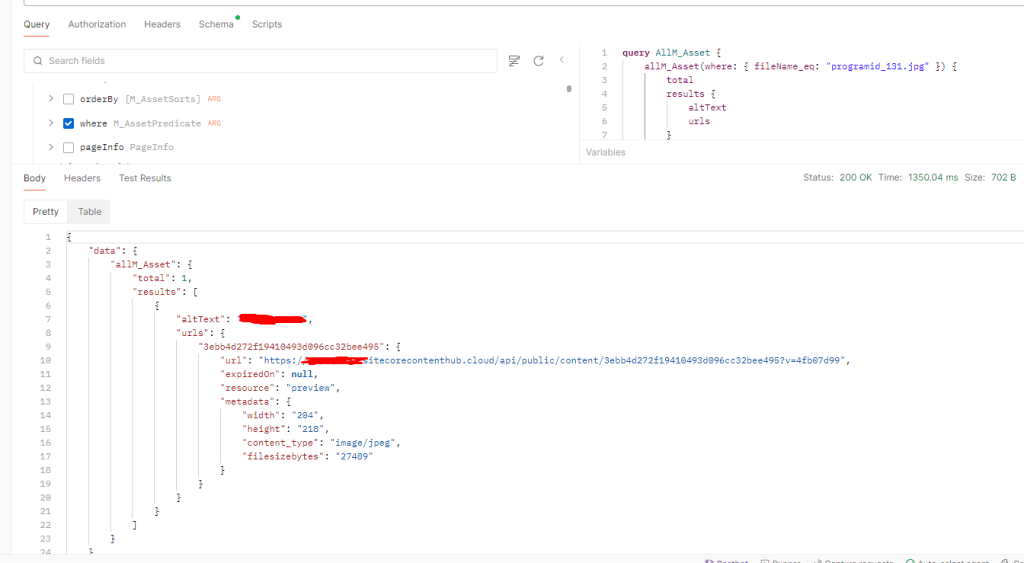
Now execute the query by clicking the Query button. You should see the results in the results pane as shown below.
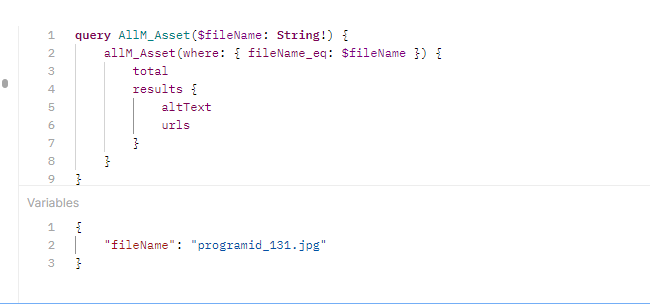
You can also use parameters to pass the value into the query.
The similar way you can use other schema types to generate the GraphQL query and fetch the data.
Happy learning!!!